Tag: acer

  • Feature Round-Up: Acer Chromebook Tab 10

    Feature Round-Up: Acer Chromebook Tab 10

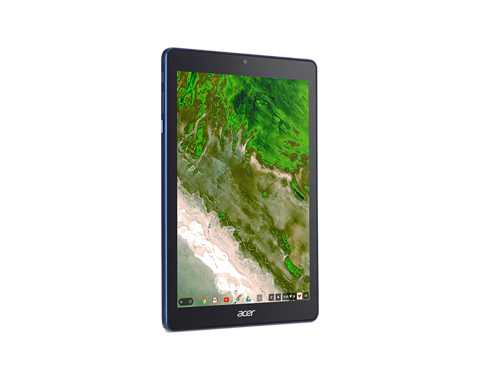
    While Android tablets are all but dead now, Google is still interested in using tablets for educators and students. To that end, the first tablet running Chrome OS, the Chromebook Tab 10, is slated to be the best classroom slate yet. We’ve got a quick roundup of some of the most notable features of the Acer Chromebook Tab 10. How will it make the class experience better for teachers and students? Let’s check it out! 

    The Specs 

    First off, it’s a huge tablet. It’s got a 9.7-inch screen and weighs a solid 1.2 lbs. This is great for the classroom, as it means it’s got enough mass to not get lost or misplaced! On the tech side, it’s got 4 GB of RAM, an OP1 CPU and a Mali T860 GPU. This all adds up to the tablet being more than powerful enough to handle any classroom duties. This will likely be many kids’ first experience with tablets, so it’s good that this one has all the power needed to handle basic tasks.  

    Interestingly, it also sports a USB-C port. That port’s versatility is a great boon for classroom settings! Charging, of course, is the primary use, but sending video and transferring data are also uses the port allows for. 

    Design 

    This big tablet has a rubberized back and big bezels. It’ll likely prove quite durable and kid-friendly. It’s set to come in a number of bright colors, making it great for kids. That big size does bring up a problem, though: it’s hard to type on. While Chrome OS allows for Bluetooth keyboard connection, the Acer Chromebook Tab 10 doesn’t have one included. As such, typing on the big on-screen keyboard is a little awkward. For kids with small hands, it’ll likely be even harder. The fix, laying it on a table and pecking the keyboard with the index finger, works, but itsn’t ideal.  

    Stylus 

    It also sports a Wacom stylus, which can be whipped out to easily pen notes in the middle of class. It’s a little short and wouldn’t be great for a professional or artist, but for a kid taking notes or drawing it’s perfect. It doesn’t recognize tilt, and it sports a bit of latency, but these are deal-breakers for what the tablet’s meant to do.  

    Acer Chromebook Tab 10: A Little Awkward, but Great for Students 

    The tablet is a bit funky, and the Chrome OS has some kinks when used for a tablet. However, Acer’s tablet is a great proof-of-concept. The student-friendly Chrome OS is absolutely well-positioned for tablet use, it just needs a bit of fine-tuning. The tablet costs $329, making it relatively affordable for classroom use. Thusly equipped, kids will be learning in no time. If we keep using technology like this, maybe the future will be pretty bright after all. 
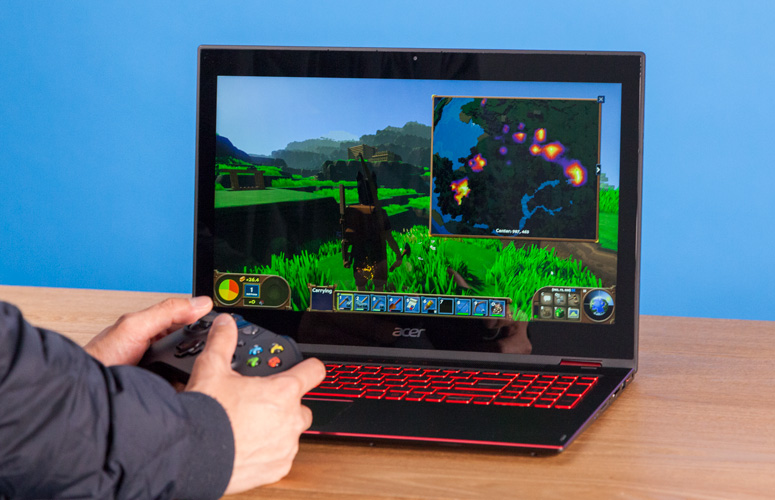
  • Acer Nitro 5: Gaming Muscle, Laptop Price

    Acer Nitro 5: Gaming Muscle, Laptop Price

    Gaming laptops are usually pretty expensive. If you want graphical fidelity and snappy processors, you have to spend a pretty penny. At least, that’s conventional wisdom.

    [iFrameGen iframe_type=”Y_iFrame” template_key=”adlist_gfg_green_v7_070102018″ keyword=”portable%20gaming%20laptop” type_tag=”_gfg-20180830-gaming-laptop-green-top” placement=”_pc1″]

    Acer wants to change that with the Acer Nitro 5, though. Acer can talk a big game, but does it deliver on its promise of gaming-goodness at a low price?

    First Consideration: Price

    It doesn’t really matter how strong it is if the price isn’t right, though. Thankfully, the Nitro 5 is in the right place with its MSRP. Coming in at a reasonable $670, and available at less than $600 from wholesalers, the Nitro 5 doesn’t break the bank. Where once you’d have to spend more than $900 for a decent gaming laptop, recent innovations in graphics and processors seem to have brought prices down. While the Nitro 5 isn’t the strongest laptop around, it’s certainly the best bang for your buck.

    What’s Inside, Though?

    Okay, so you’re sold on the price. But what’s in it? Well, that’s where things get interesting. The most cost-efficient layout has a 2.3 GHz Intel i5 running the show, 8GB of RAM and a 4GB Nvidia GeForce GTX 1050Ti. While there are slightly cheaper versions of the laptop, we recommend this setup for maximum gaming potential for your buck. So, what does all of that mean? It means this is a surprisingly powerful machine for its price. You won’t be disappointed when the Nitro 5 takes on modern games: graphics will be high-fidelity, and frames will be smooth.

    [iFrameGen iframe_type=”Y_iFrame_2″ template_key=”adlist_gfg_green_v7_070102018″ keyword=”portable%20gaming%20laptop” type_tag=”_gfg-20180830-gaming-laptop-green-bottom” placement=”_pc2″]

    Design

    This one looks the part of gaming laptop, to be sure. The keyboard is huge and glows with red back-lights and the vents are stylized and mean. It has a touchpad, which is responsive and gets the job done. It has no dedicated buttons for left or right click, though; you have to click the pad itself. This is awkward for some, but others don’t mind it. All that being said, we recommend gaming with an actual mouse, so the trackpad isn’t a big concern.

    The display is the most important part of the exterior design, though, as it’s what you’ll be viewing the games through. It’s got a solid 1,920×1,080-pixel resolution, but doesn’t have the best colors. Images look slightly washed-out and blah. That said, the images are crisp, just a little bland.

    Acer Nitro 5: Worth the Price?

    With the right configuration, the Nitro 5 is a great gaming laptop for mid-sized games. For a laptop to game on lunch breaks or on the bus, you could do much worse. If you’re looking to play through a back-catalogue of older games, or simpler games like Fortnite, this is a great pick. Newer AAA games might not look too smooth, though. If you’re looking for a full-scale gaming PC replacement, it doesn’t quite have the power for that.  That said, the price is right for a portable gaming platform with reasonable power.

  • Acer Spin 1 the 2 in 1 with Incredable Value

    Acer Spin 1 the 2 in 1 with Incredable Value

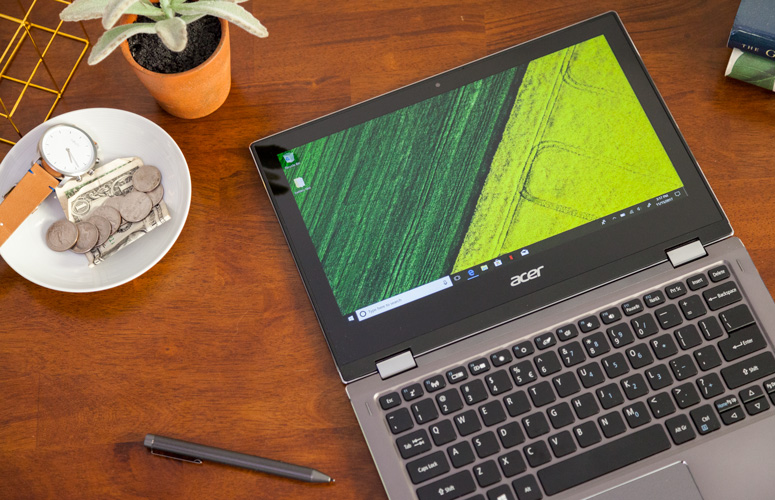
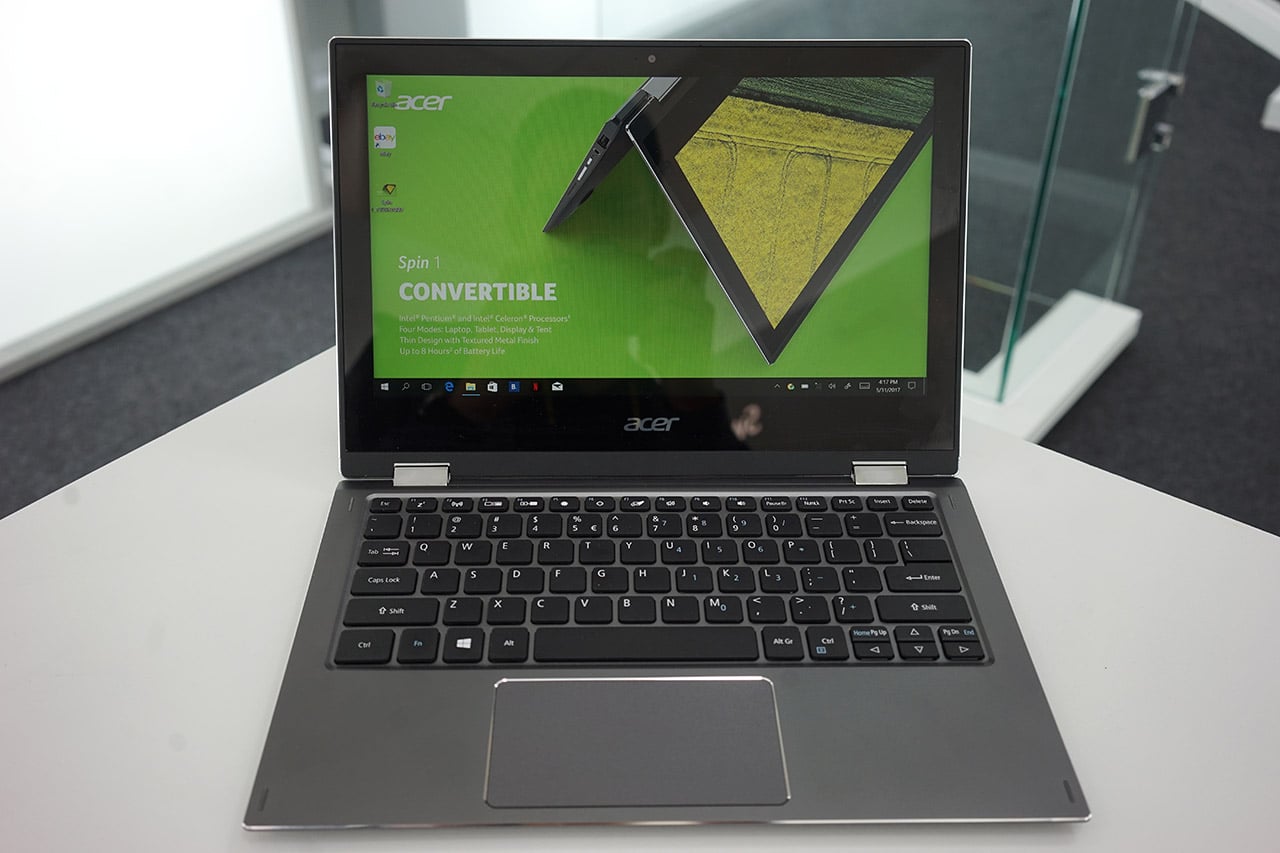
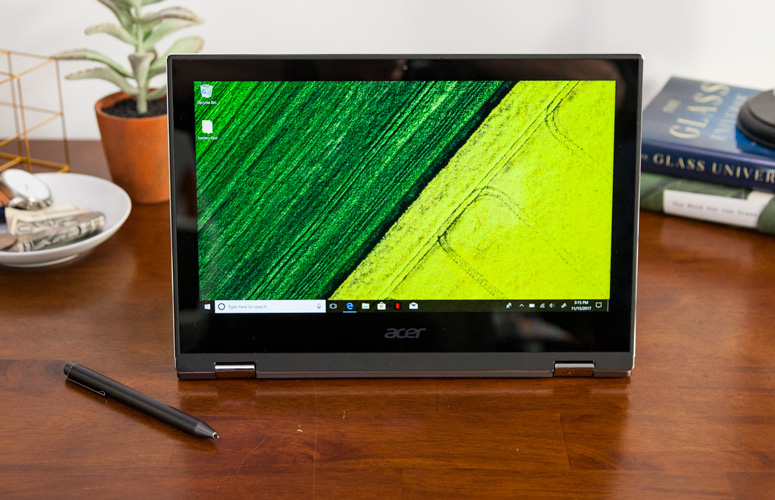
    Quickly turn thoughts into action on Acer’s Spin 1 Convertible laptop. Portable and light, this boundless device is fast and fun with an included stylus and Windows Ink so you can jot down a note or capture ideas as easily and quickly as they occur. It features a vibrant 11.6” Full HD IPS display and battery life that has enough juice to last you though your entire journey while the 360° hinge laptop smoothly converts between four modes —laptop, display, tent or tablet—by simply ‘spinning’ it into position.

    The Great

    • Sharp
    • Colorful display
    • Attractive metal chassis
    • Comfortable keyboard

    The Not

    • Below-average battery life
    • Small storage drive


    The Conclusion

    For under $350, the Spin 1 provides some features you usually see in laptops that cost closer to $1,000. Clad in a snazzy all-aluminum chassis, this 11.6-inch convertible has one of the most colorful and brightest 1080p screens on the market, giving it a better viewing experience than many systems three times its price. It also comes standard with an active stylus that supports 1,024 levels of pressure. With a Celeron processor and 32GB of storage, the Spin 1 probably won’t replace your primary PC, but it makes a great secondary device and is a fantastic choice for kids.


    The Design

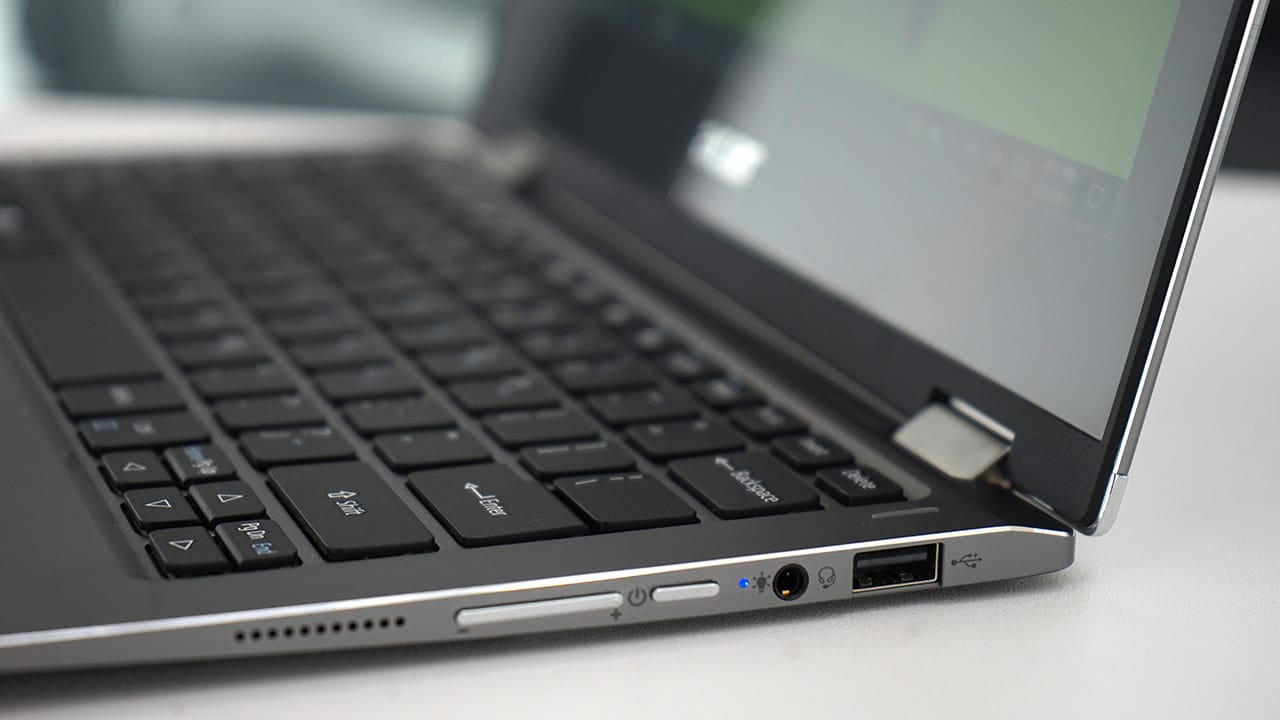
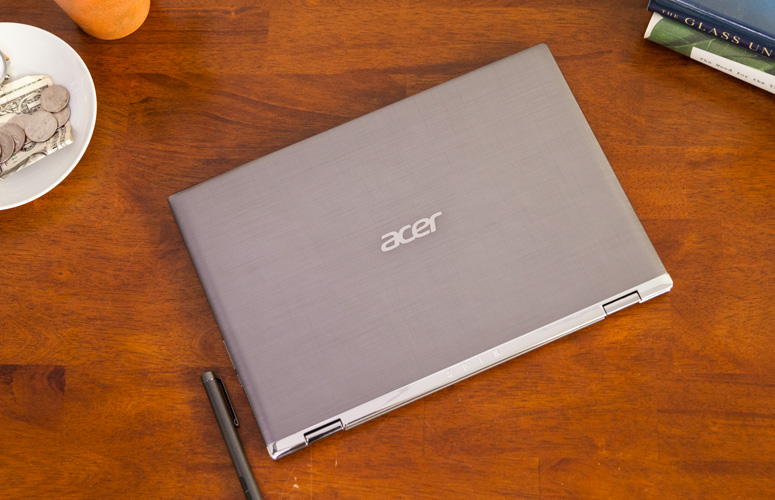
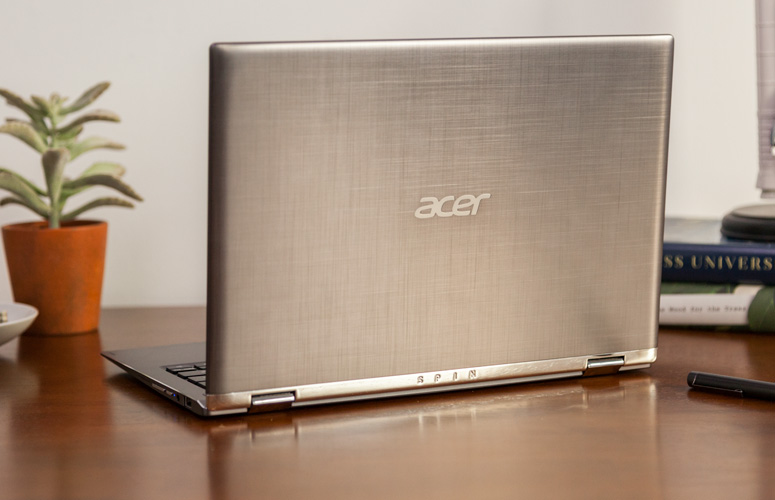
    The Acer Spin 1 doesn’t look anything like a $329 laptop. Its gunmetal-gray aluminum chassis stands out in a price band where cheap, glossy plastic is the norm. I particularly like the subtle, cross-hatch pattern on the dark gray lid and how it contrasts with the shiny, silver hinge area. Thick screen bezels, however, keep the inside of the system from looking quite as stunning as the outside of the package


    The Display

    The 11.6-inch screen on the Spin 1 is so bright and colorful that it has caused me to question my assumptions about the laptop industry. If Acer can put a 1920 x 1080 IPS touch display this vibrant on a $329 laptop, why can’t manufacturers offer this kind of display quality in their $800 and $1,000 laptops?

    Keyboard and Touchpad

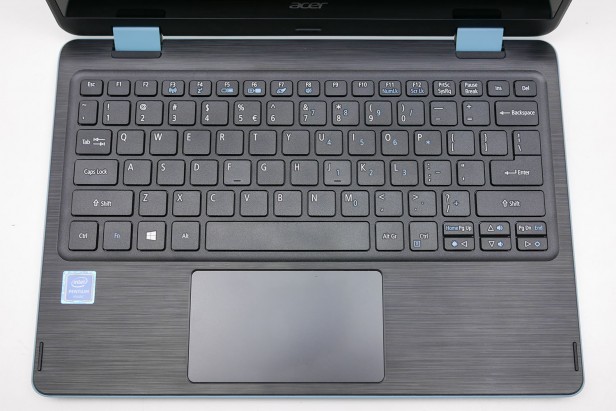
    When it comes time to type on most budget laptops, particularly 11-inchers like the Spin 1, I gird myself for an unpleasant experience. However, Acer’s 2-in-1 blew away my expectations with a snappy, responsive keyboard that didn’t have any of the flex or key stiffness I often see on much more expensive system

    The Performance

    We’ve spent more time than usual really paying attention to what the Acer Spin 1 feels like in use, because a lot of older Atom and Celeron laptops were just too slow to be enjoyable. For the most part this Celeron actually performs fine for the basics.Browsing the web, writing documents and other basic productivity jobs are painless. Using the Acer Spin 1 to write a few of our reviews felt much as it would on a laptop with a Core i5 CPU

    Quick Spec Look

    •  11.6-inch,
    • 1080p IPS screen
    • 4GB of RAM,
    • 32GB eMMC Storage
    • Intel Celeron N3350 CPU
    • 2.65 pounds

    The Final Thought

    If you want a cheap hybrid and have realistic expectations about performance, you should jump at the Acer Spin 1. It’s well-made, is comfortable to type on and has a superb screen for the price.


  • Top 3 Tablets For The Kids

    Top 3 Tablets For The Kids


    The Kids these days love their tech toys, and continue to blow are minds how quickly they can learn to use them and the functions they get out of them. Here is the top beginner tablets for kids that wont break the bank and can handle their abuse.


    1.Lenovo Tab 4 8

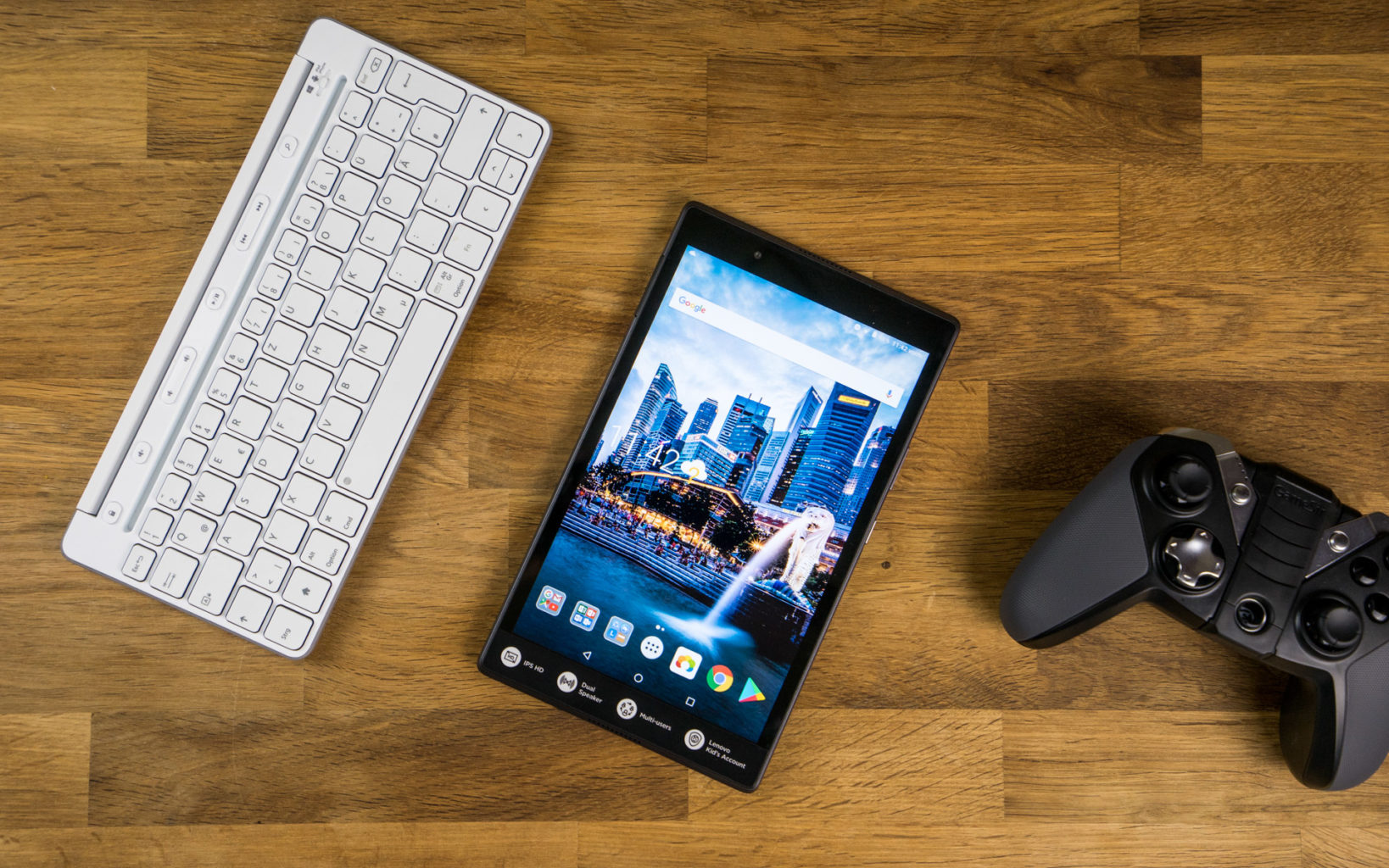
    Lenovo’s new 8-inch tablet is a good option for slightly older kids, ones with more experience with technology that don’t need the training-wheels of a tablet made for younger tots. Unlike Amazon’s Fire tablets, the Tab 4 8 offers a true Android experience, so you can use Google’s apps without the annoyances and risks involved with side-loading. It also offers good battery life and performance, and a bright, colorful display.

    For $20 extra, you can get Lenovo’s Kids Pack add-on, which includes content curated just for kids, parental controls, options for scheduling and limiting play time, a protective bumper case, stickers and a blue light filter.


    2.Amazon’s Fire 7 Kids Edition

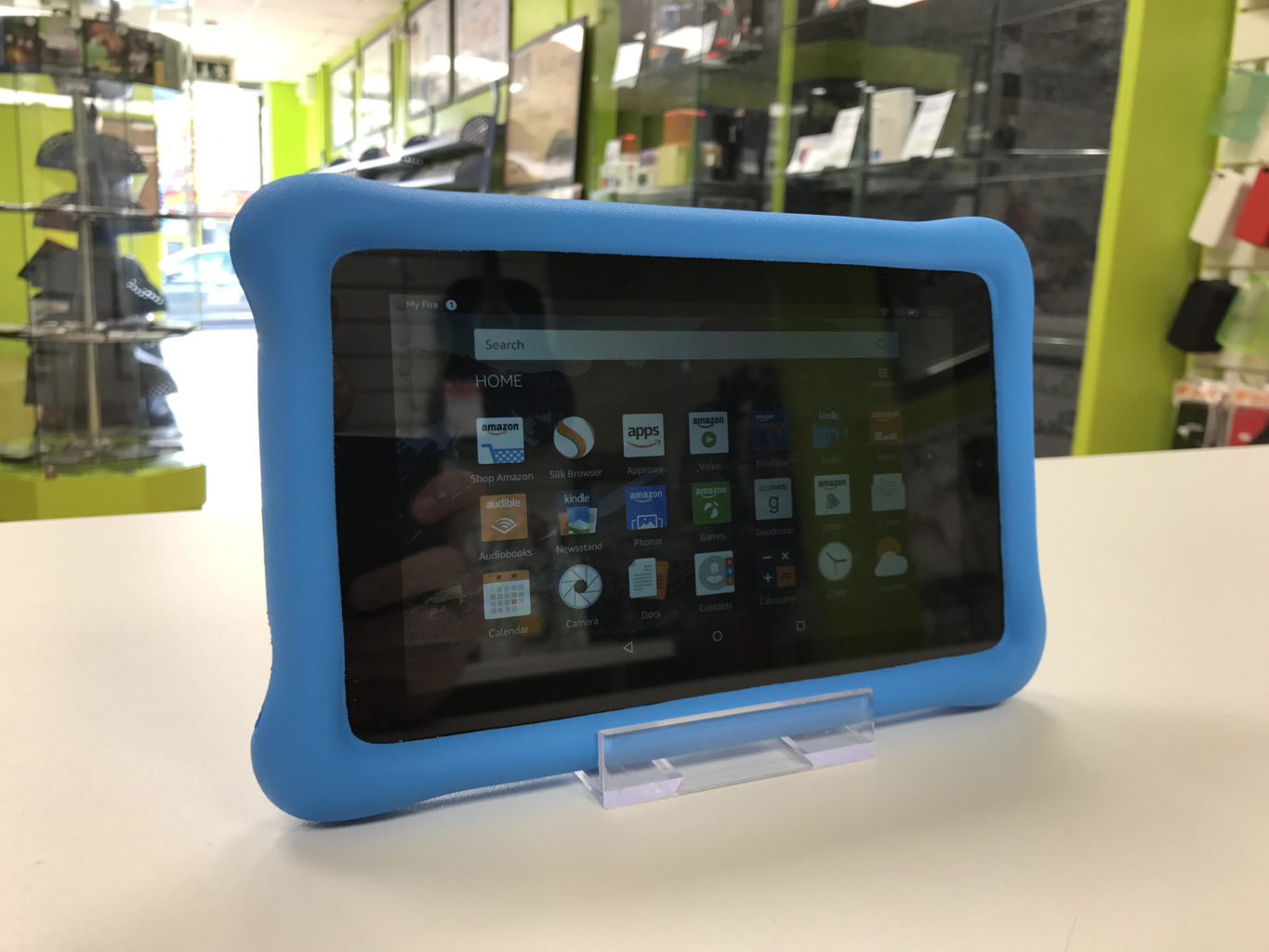
    .Amazon’s Fire 7 Kids Edition bundles the company’s 7-inch budget tablet ($49 on its own) with a new protective bumper and a year’s subscription to Amazon’s FreeTime Unlimited for just $99 (16GB). Right now, it’s even cheaper, thanks to a sale that knocked it down to the nice price of $69. FreeTime Unlimited gives you more than 10,000 books, videos, educational apps and games curated for children. Plus, a two-year guarantee promises a no-questions-asked replacement if your child destroys the tablet.


    3.Acer’s Chromebook Tab 10

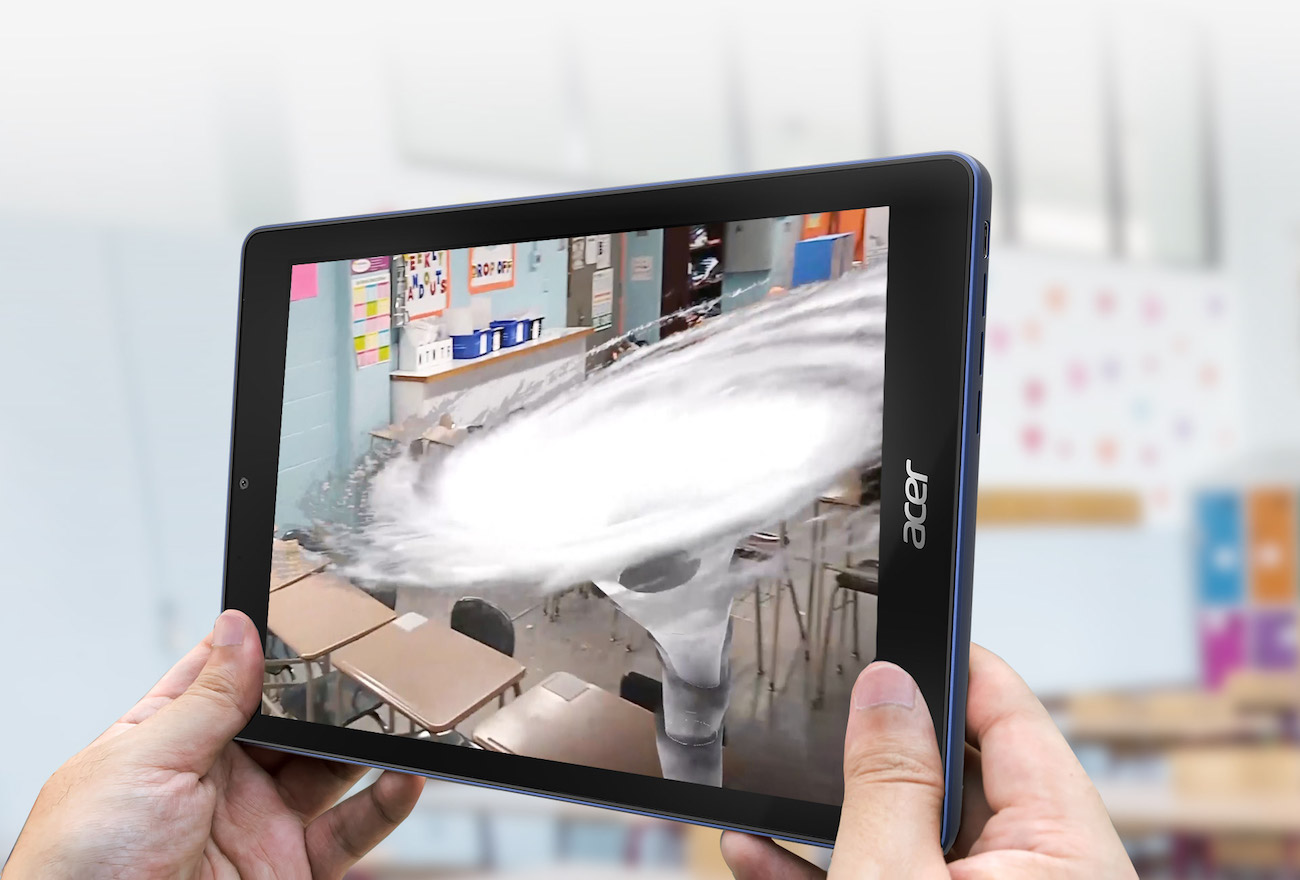
    Acer’s announced the Chromebook Tab 10, the first tablet running Chrome OS. Made for the classroom, and priced to compete with the 2017 iPad ($329), it features a 9.7-inch, 2048 x 1536-pixel screen, runs on a OP1 CPU with 4GB of RAM and offers 32GB of storage. Includes aWacom EMR stylus and will (eventually) feature Google’s Expeditions AR, a classroom learning tool.


    Honorable Mention: Verizon’s GizmoTab

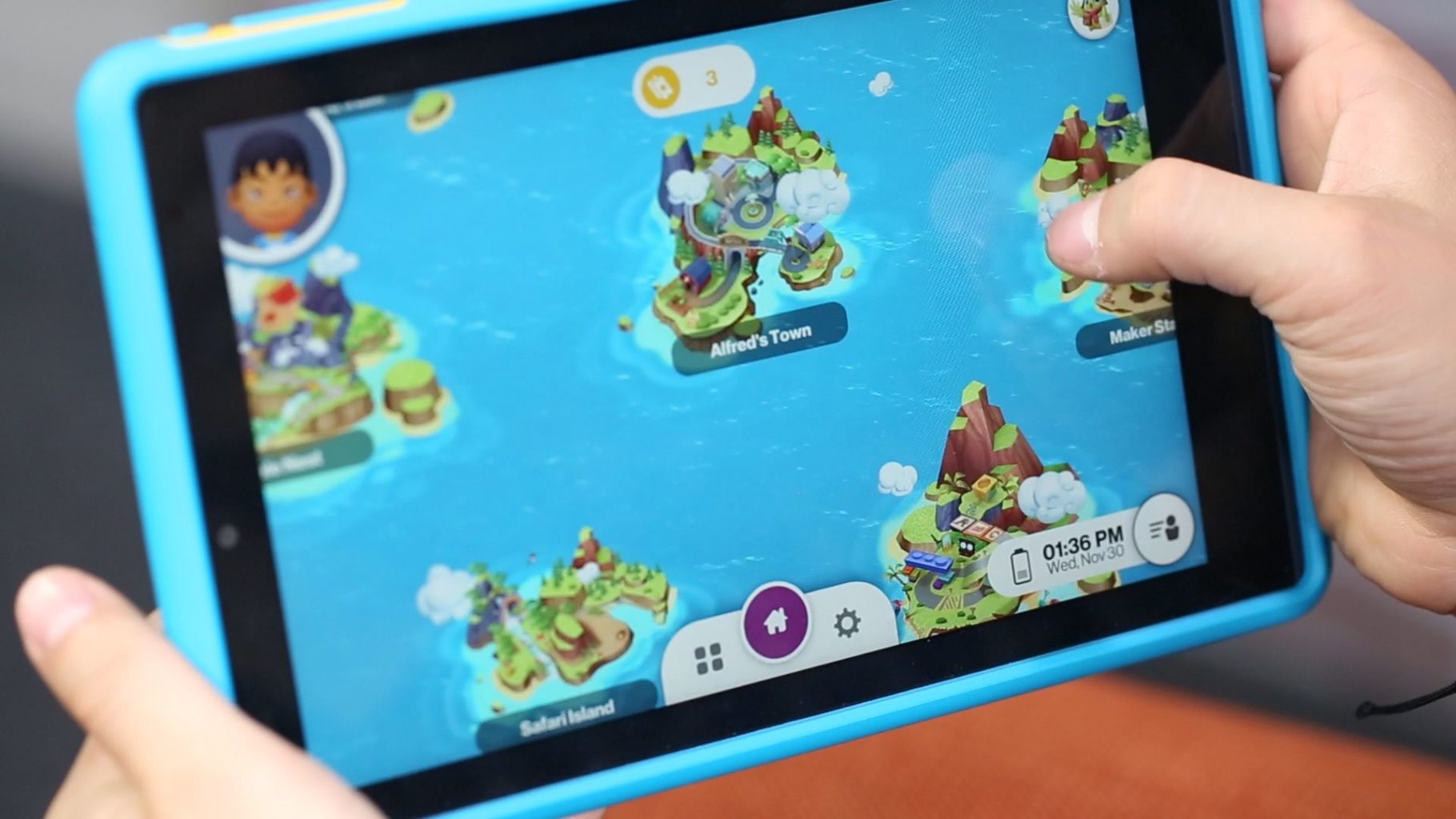
    Unlike every other tablet on this page, Verizon’s GizmoTab ($80 with a 2-year contract, $250 off-contract) packs LTE connectivity. This way, your kids can never complain about not being able to stream videos or download games on the go. The 8-inch slate comes with a rubber bumper that protects it from falls, so junior can’t break it. If you use the GizmoTab with a Verizon data plan, you’ll get access to 300 kid-friendly apps that offer educational and entertaining experiences.


    The Final Thought

    This generation will prove to be the most knowledgeable, what they do with that knowledge is up to us. They will know where the answers are to any question they can think of, leaving their brain open to progressing those thoughts and answers. Getting them started on the path earlier is probably a good idea and getting the right tablet to do it.