Tag: windows 10

  • Biggest Changes in the October Update for Windows 10

    Biggest Changes in the October Update for Windows 10

    As of late, Microsoft has been releasing twice-yearly updates for Windows 10. The ubiquitous operating system last received a major overhaul in April with the previous update. Now, the October Update for Windows 10 is right around the corner and we’re eager to see what it brings. As such, today we’re rounding up the biggest changes coming in the October Update for Windows 10.

    Biggest Changes in the October Update for Windows 10
    windows10

    Clipboard History

    The first notable change coming is the clipboard history. Accessed by hitting the window key and V at the same time, it holds a list of your recent cut and copied items. This is a big plus for writers and those who often work in word processors. Also coming is a cloud sync for your clipboard, allowing you to copy and paste across Windows devices. Neat! Well, we think. It might be totally superfluous.

    SwiftKey Keyboard

    If you’re using a Windows tablet or Surface device, you’re going to love this. The SwiftKey keyboard, the fast, responsive Microsoft touchscreen keyboard is getting a big update. Also, prepare to see some pretty crazy designs for dual-screen laptops.

    Dark Mode

    Microsoft apps, like Word, Excel and PowerPoint, will be able to be run in Dark Mode soon. Much like the changes coming to the new MacOS, the October Update for Windows 10 will include Dark Mode. For those who work at night, or just prefer the softer look of Dark Mode, this is a huge boon. No more blinding yourself with stark white apps with no Dark Mode options!

    Less Restarting

    You turn on your computer, and you’re in a hurry. There’s a deadline for a project, or you’re rushing to join your friends online for a game. Whatever it may be, you need your computer to boot up quickly. However, you forgot to restart for an update last night. So, congratulations, you get to sit here and watch your PC update for twenty minutes. Microsoft is aiming to alleviate this with “smart update windows.” The system will attempt to learn your pattern so that it knows the safest times to restart for updates without interrupting you.

    Screenshot Tool

    The Snip and Sketch tool is the newest take on screenshots, courtesy of Microsoft. This tool is not quite a replacement for the Snipping Tool, but it’s being pushed pretty heavily as the way to do screenshots. While the Snip and Sketch tool is useful in some ways, it’s not necessarily better than the Snipping Tool. Pressing prt sc can now be hotkeyed to open the Snip and Sketch, which allows you to draw the area you want to capture
  • 10 Cool Things You Didn’t Know You Could Do with Windows 10

    10 Cool Things You Didn’t Know You Could Do with Windows 10

    Windows 10 is a robust, fascinating operating system. It’s user-friendly and deep, and there’s likely tons of neat little tricks in it you don’t know about. How many of these interesting Windows 10 tricks do you know? You’re sure to find something here you didn’t already know how to do! 

    Old-School Desktop 

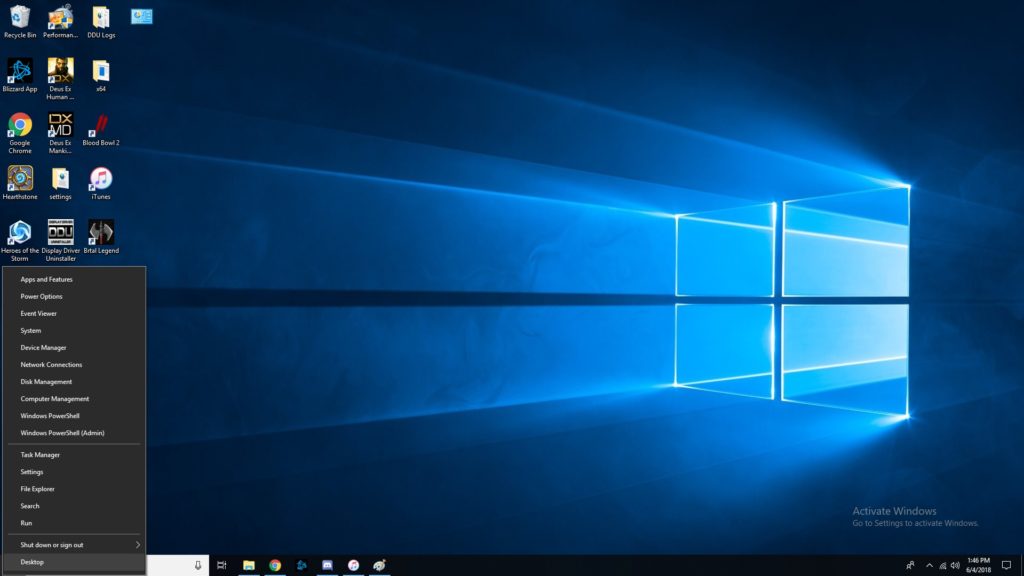
    If you like the more old-school look, try right-clicking the Windows button. This pulls up a set of controls that are familiar to long-time users. Hopefully if you’re having trouble navigating the OS, this trick helps you find your bearings. 

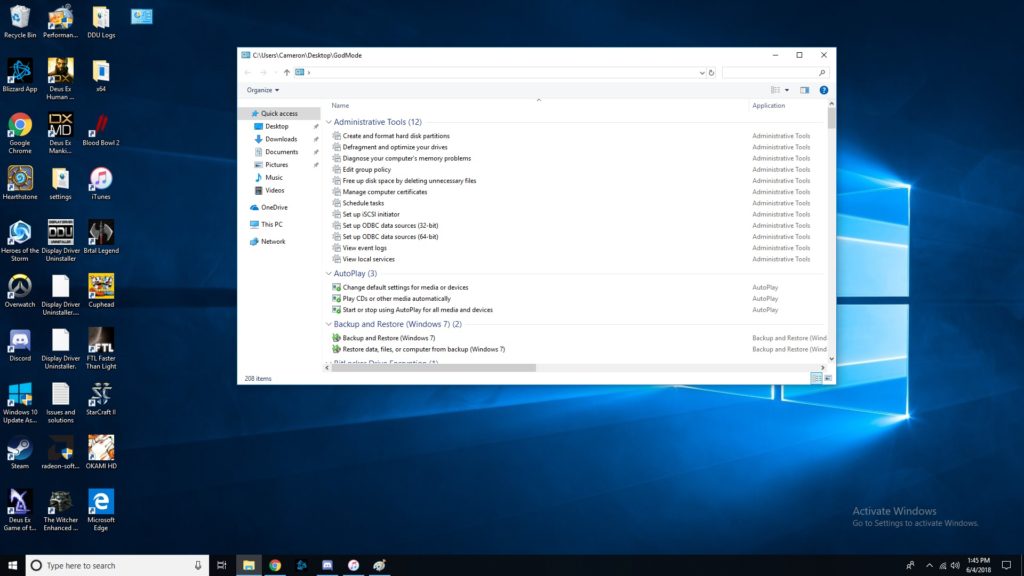
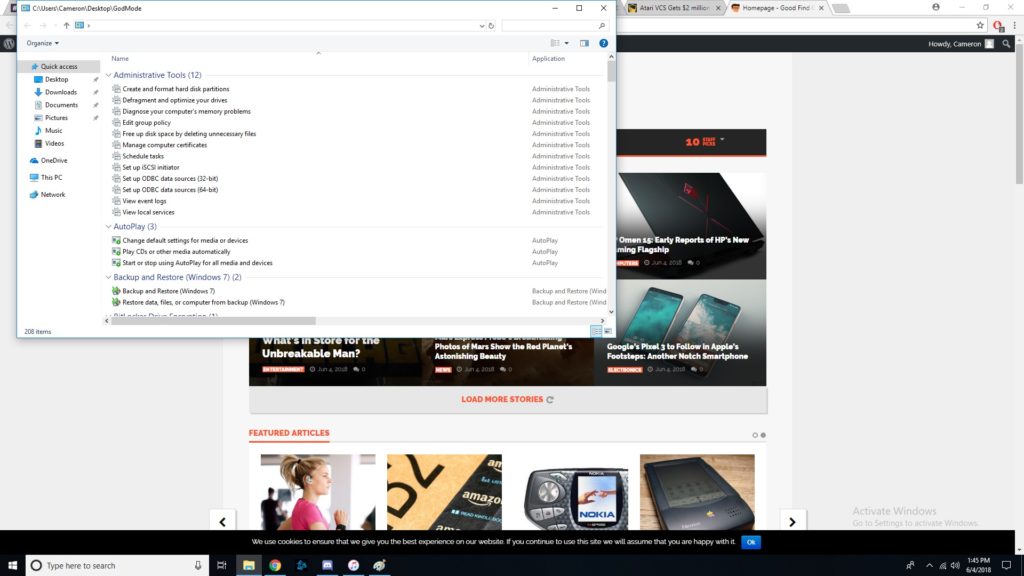
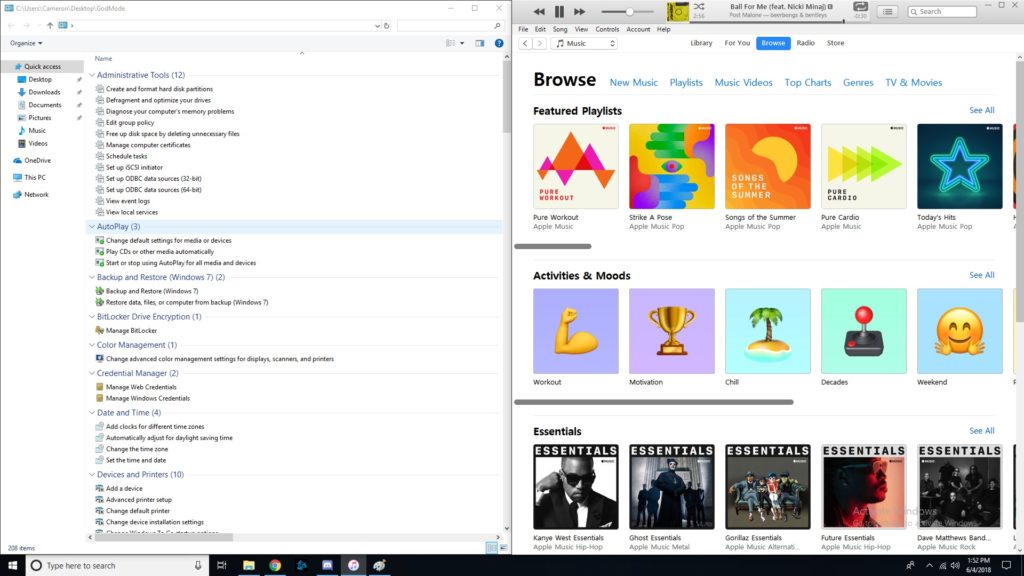
    God Mode, Enabled 

    If you’ve ever wanted to take direct control, you’ll love God Mode. It’s surprisingly easy to enter this Windows “cheat code,” but it’s super useful. To start, you should go to your desktop, right click, and make a new folder. Then, rename the folder “GodMode.{ED7BA470-8E54-465E-825C-99712043E01C}”. Congratulations, you’ve now enabled God Mode. Have fun with all these commands! 

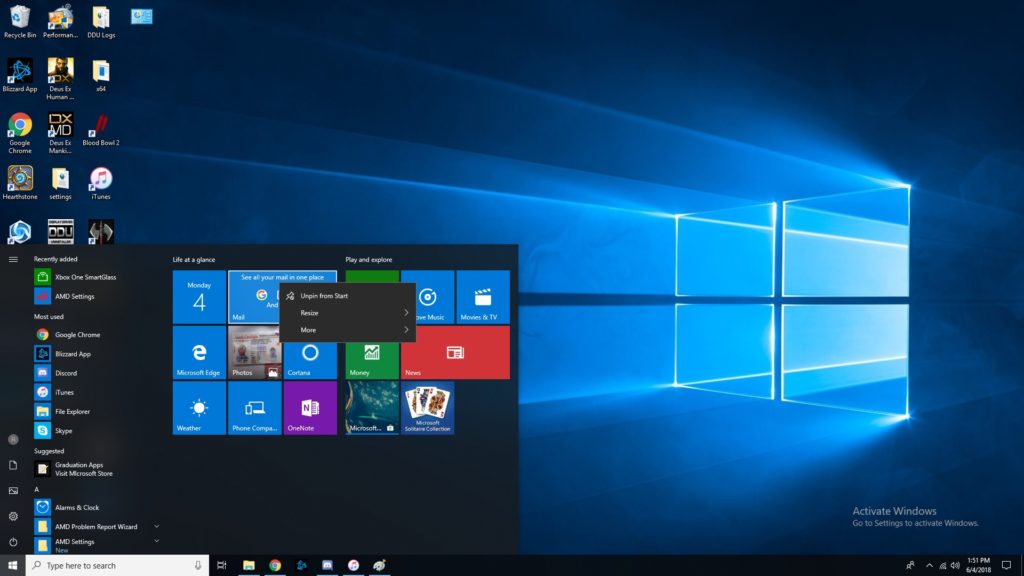
    Customize Tiles 

    If you want to customize your tiles, right click them. Now you can unpin, resize, pin to taskbar and more. You tile dashboard is meant to be an all-inclusive display, so having direct control of it is awesome. Make it your own, and have it show all the info you want at a glance! Remember, Windows 10 was made to be a great desktop OS and a great tablet interface in one. 

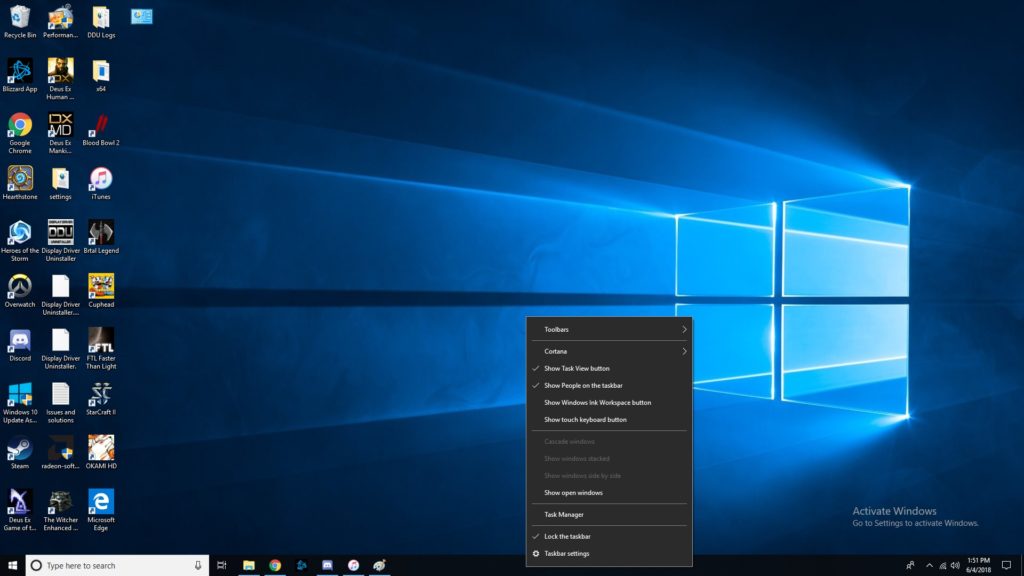
    Right Click Taskbar 

    Right clicking the taskbar brings up tons of awesome functions. Don’t be afraid to try it out! Some Cortana functionalities are controlled through here, you can mess with Windows schemes, and more! This one is simple but helpful. A lot of folks don’t even know this menu is there! 

    Show Desktop Button 

    That tiny little bar down there in the bottom-right corner where the cursor is in the image is the show desktop button. If you have a bunch of windows open and want to see the desktop, this is a great shortcut. Clicking in the bottom right corner is much easier than having to minimize four or five windows one after the other! 

    Pinning Windows  

    If you drag a window to one side of the screen, it’ll get pinned there as exactly half the screen. If you drag it to a corner, it will become a quarter of the screen. This is awesome for professionals who need to multitask! If you often use editing software or have to multitask a lot, you’ll love this feature. It’s also just cool to have for when you want to live-Tweet a stream and not have to hold your phone the whole time. 

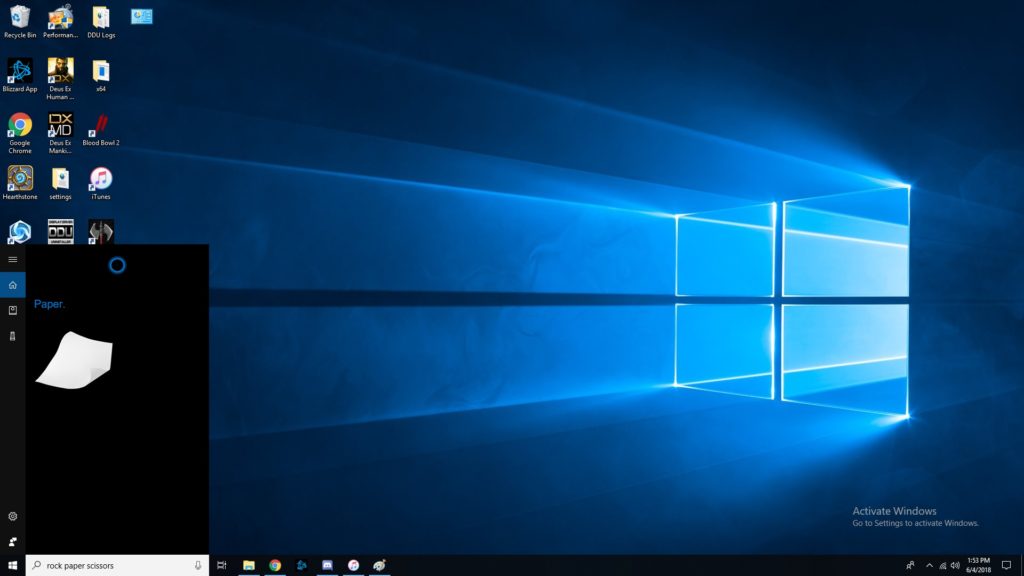
    Fun with Cortana 

    Did you know Cortana knew a bunch of games? She can play rock, paper scissors, for one. She can flip coins, roll dice and more. Just type in the Cortana box any of those commands, or, if you’ve enabled it, use voice commands. These little diversions are a fun use of Cortana’s functionality. 

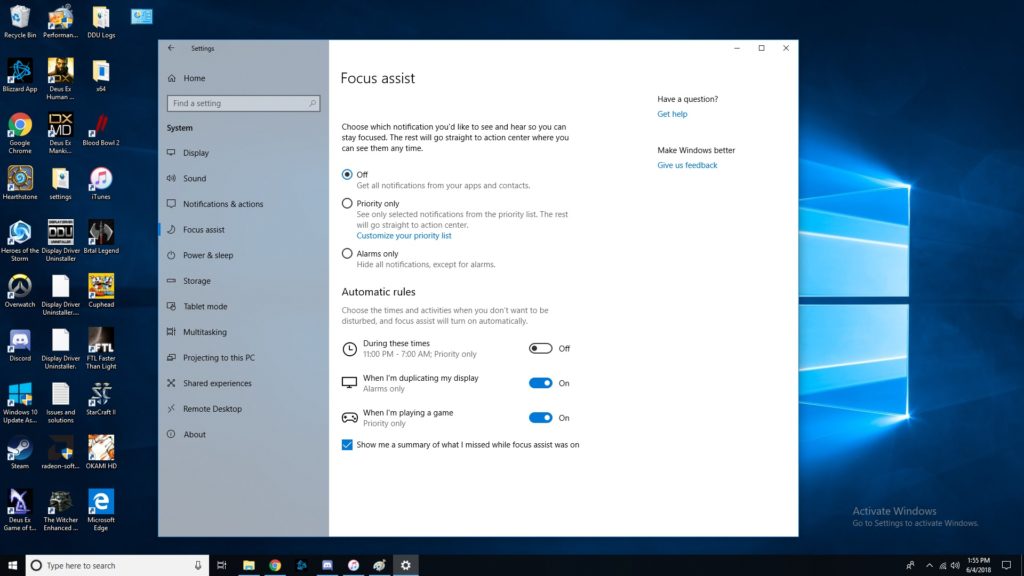
    Focus Assist 

    Sick of notifications throwing you off when you’re trying to work? Try Focus Assist. Go to settings, and under system settings you’ll find Focus Assist. This mode lets you set hours you’d like to silence notifications, and even lets you customize which notifications are high-priority. This functionality is similar to smartphones’ Do Not Disturb mode. It isn’t frequently used, though, as many people don’t even know that it’s there! 

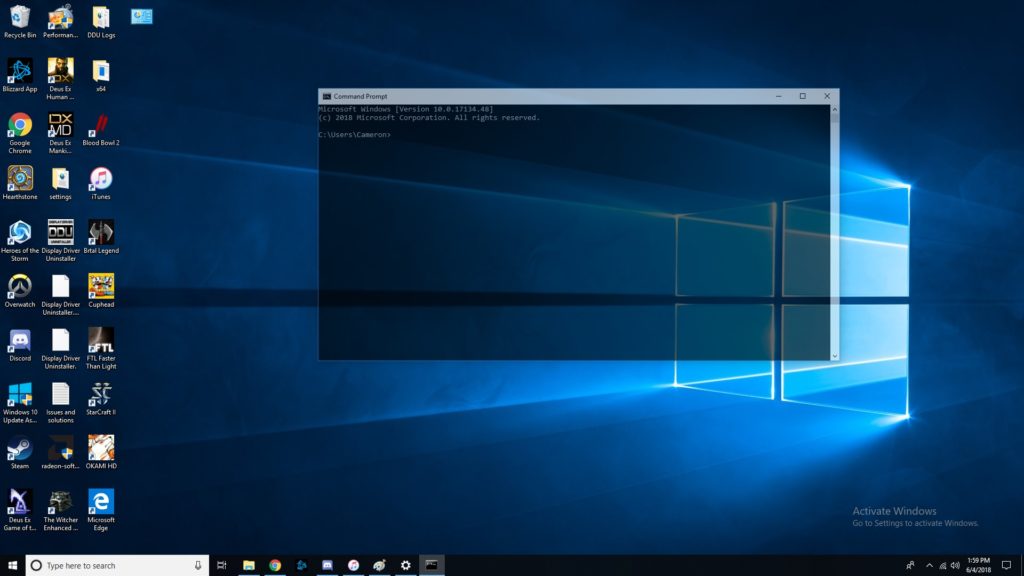
    Transparent Command Prompt 

    The command prompt is super handy for programming and debugging. If you often use the command prompt but would like to be able to monitor other windows while doing so, try this trick. When using the command prompt, right click the top of the bar. Then, click on colors, and look for the opacity slider at the bottom. Slide until the window is as transparent as you want it! Now you can watch your commands get reflected in real time. 

    The Coolest Hidden Windows 10 Function: Dictating 

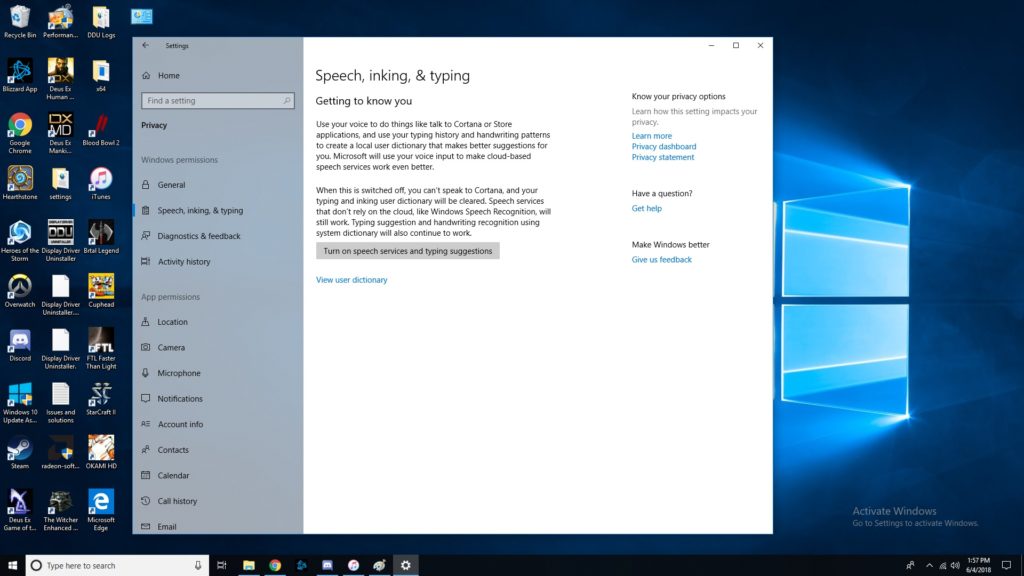
    Dictation is super handy for a number of uses. For one, it’s good for when you just don’t feel like typing or feel like you can speak faster than type. More importantly, it’s a great accessibility tool for those unable to use a keyboard. In any event, enabling dictation is simple! Go to settings, then speech, then related settings. Then, click on “Speech, inking and typing privacy settings” and enable dictation. Boom, now we’re talking! Literally!  

    Did you know all of these cool Windows 10 tricks, or did you learn something new? Now, go forth and enjoy your operating system with all these new tricks you know! 

  • Windows 10 April Update Crashing Intel Solid State Drives

    Windows 10 April Update Crashing Intel Solid State Drives

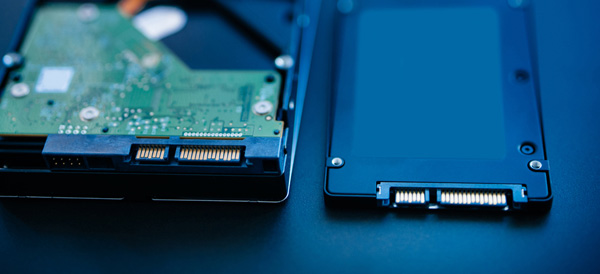
    Microsoft is blocking the rollout of the April Windows 10 update to certain users. Windows users with Intel Solid State Drives are being blocked from the update in order to protect them from a system-crashing series of bugs. Specifically, the Intel SSD 600p Series and Intel SSD Pro 6000p Series are encountering the bug, according to a report by Ars Technica. 

    Solid State Drives Causing Woes? 

    This isn’t the first time new OS updates have caused issues with SSD users. The unique drivers incorporated by SSDs often clash in unexpected ways with operating systems. Linux users experienced similar issues last year, with the new OS’s power management features attempting to override the primary functions of the SSD drivers. 

    What’s the Deal? 

    The details of this bug are currently unknown. It seems unlikely this issue will be terribly massive: a simple fix already exists. Users need only rollback the update from the Safe Mode screen to recover their PCs. However, this is frustrating, given the ubiquity of Intel SSDs and the massive size of Microsoft. How is it that no beta testers found this bug? Or, if they did, why wasn’t it addressed before the updates went live? 

    Sign of Things to Come? 

    This update was already delayed after bugs causing blue-screens were identified by beta testers. The update went back to the developers for fine-tuning, but somehow still went live with computer-crashing bugs. Thankfully these bugs aren’t fatal, but they are still troubling. How does a company as big as Microsoft miss something as big as this?